
Practical checklist for an accessible website
Want to improve your website's accessibility? This checklist highlights the most important areas to focus on. Even small improvements can make a meaningful difference for your visitors.
Start with your content
Write in plain language:
- Use short sentences, active voice and avoid unnecessary jargon.
- Learn more about plain language:
-
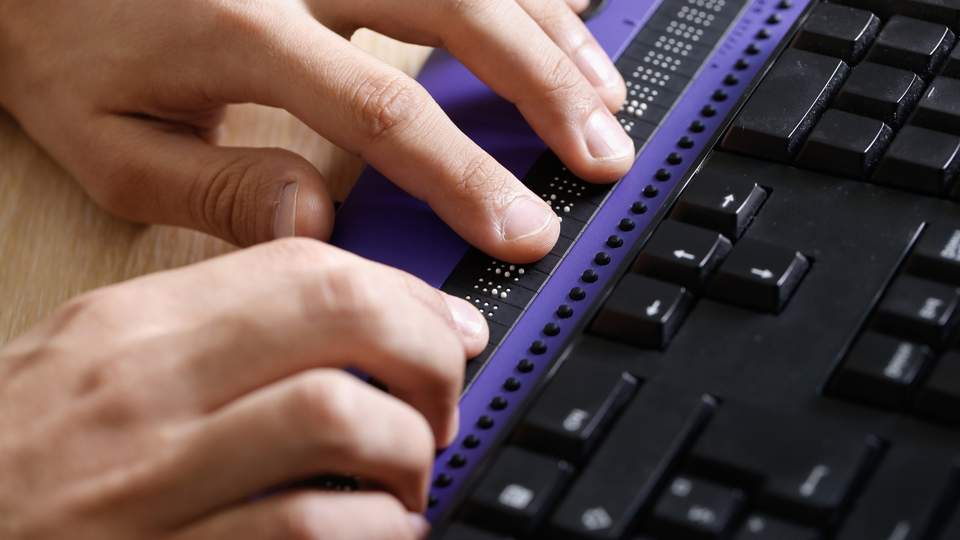
Clear language on your website
With accessible language, you create a win-win situation. You reach a wider audience and your visitors can find easily what they are looking for.

Use a logical structure :
- Organise your content with clear headings and subheadings (H2 and H3) and use lists where appropriate.
Add alternative text to images :
- Describe visual elements that are relevant to the content so that people using screen readers can access the same information.
- Visitors with a slow internet connection will also be provided with the description.
- Purely decorative images generally do not require alternative text.
Use meaningful link text :
- When linking to another page or website, avoid generic text such as: Click here
- Instead, use descriptive links: Download the accessibility guide
Consider video and audio content:
- Provide captions for videos.
- Offer transcripts where possible.
- Make sure important information is not communicated through audio alone. Essential information should also be available in text or visual form.

Create an accessible design
- Ensure sufficient contrast between text and background.
- Use font sizes that are easy to read.
- Clearly indicate which element is selected when users navigate with a keyboard.
- Make sure the website works well across different screen sizes, including smartphones, tablets and desktop computers.
- Do not rely solely on colour to communicate information. Combine colour with text, icons or other visual cues.
Make forms user-friendly:
- Provide a clear label for every field.
- Display easy-to-understand error messages.
- Clearly indicate which fields are required before users submit a form.
Support keyboard navigation:
Some people navigate websites using only a keyboard.
Make sure that:
- all functionality is available without using a mouse
- users can move through the page in a logical order using the Tab key

Test your website
Automated testing
Several free tools can help identify accessibility issues:
- WAVE
- Lighthouse
- Axe
These tools are a useful starting point, but they cannot detect every accessibility issue.
Manual testing
Complement automated checks with manual testing:
- navigate the website using only a keyboard;
- check whether the website remains usable when zooming to 200% or more;
- test the website with a screen reader.
Consider an accessibility audit
An independent accessibility audit can uncover issues that automated tools often miss. It also provides practical recommendations for improving accessibility over the long term.
Work with an accessibility-conscious web agency
If you work with an external agency, consider asking:
- Do you have experience with digital accessibility?
- Can you provide references or case studies?
- Do you follow the Web Content Accessibility Guidelines (WCAG)?
- Do you perform accessibility testing?
- Do you have experience with AnySurfer guidelines or certification?